> ## Documentation Index
> Fetch the complete documentation index at: https://help.tooli.be/llms.txt
> Use this file to discover all available pages before exploring further.
# Your account
> Change your password, or permanently delete your Tooli account.
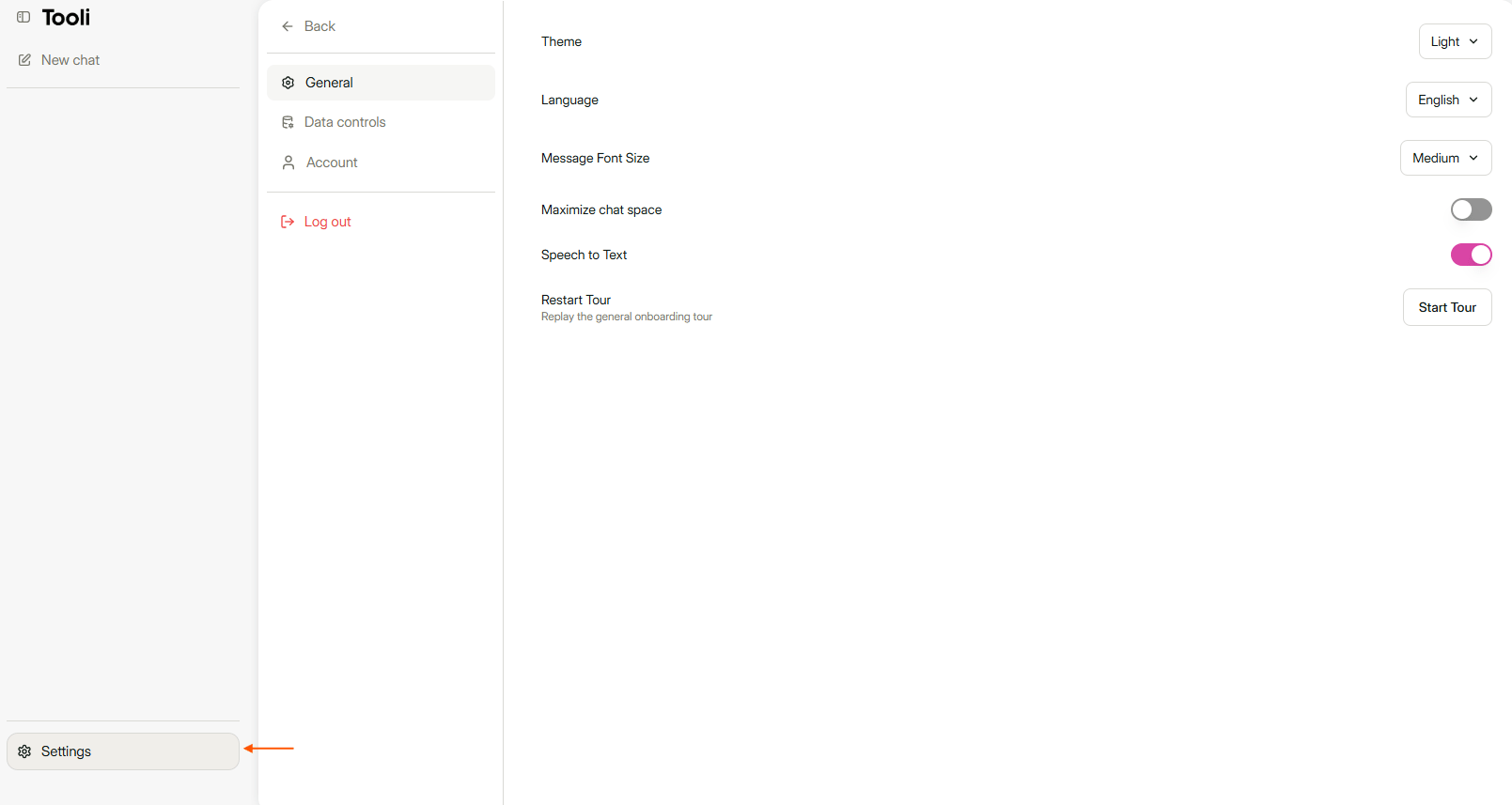
Click **Settings** at the bottom left and choose the **Account** tab.
 ## Change your password
Under **Account & security**, click **Change Password**. Enter your current password and choose a new password of at least 8 characters.
Do you log in via your organisation, for example with the Buildwise button? Then you change your password with that organisation, not in Tooli.
Forgotten your password? On the login page, click **Forgot Password?**. More help is in [Access and logging in](/en/support/access-and-logging-in).
## Delete your account
You can't get a deleted account back. All your chats, files and settings are permanently deleted.
You'll find this option at the bottom of the **Account** tab.
Enter the email address of your Tooli account.
Your account is deleted straight away.
Your membership with your organisation simply stays in place. You can create a Tooli account again later, but your old chats will be gone.
This documentation is built and hosted on [Mintlify](https://mintlify.com), a developer documentation platform.
## Change your password
Under **Account & security**, click **Change Password**. Enter your current password and choose a new password of at least 8 characters.
Do you log in via your organisation, for example with the Buildwise button? Then you change your password with that organisation, not in Tooli.
Forgotten your password? On the login page, click **Forgot Password?**. More help is in [Access and logging in](/en/support/access-and-logging-in).
## Delete your account
You can't get a deleted account back. All your chats, files and settings are permanently deleted.
You'll find this option at the bottom of the **Account** tab.
Enter the email address of your Tooli account.
Your account is deleted straight away.
Your membership with your organisation simply stays in place. You can create a Tooli account again later, but your old chats will be gone.
This documentation is built and hosted on [Mintlify](https://mintlify.com), a developer documentation platform.