> ## Documentation Index
> Fetch the complete documentation index at: https://help.tooli.be/llms.txt
> Use this file to discover all available pages before exploring further.
# Find earlier chats
> All your chats are kept in the sidebar. Open, rename or delete them whenever you want.
Tooli keeps all your chats until you delete them yourself. That way you can always continue working on an earlier chat.
## Open a chat
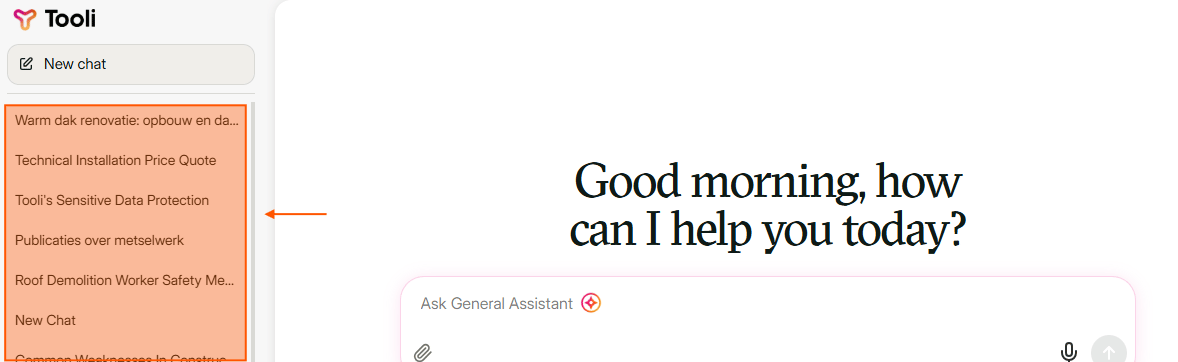
You'll find your chats in the sidebar on the left, the most recent at the top. Click a chat to open it and carry on where you left off. Can't see an older chat? Click **Show more** at the bottom.
 ## Rename or delete a chat
Hover over a chat and click the **three dots** (**···**). You then see the date of the chat and these options:
* **Rename**: give the chat a name you can find easily, for example the name of the site.
* **Delete**: the chat disappears from your list.
* **Share**: see [Share a chat](/en/using/share-a-conversation).
## Rename or delete a chat
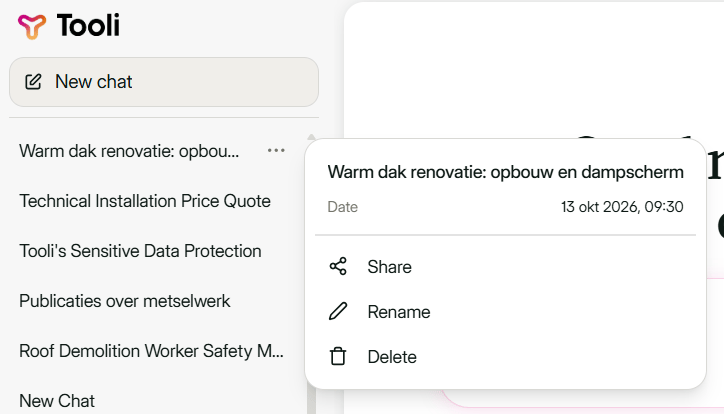
Hover over a chat and click the **three dots** (**···**). You then see the date of the chat and these options:
* **Rename**: give the chat a name you can find easily, for example the name of the site.
* **Delete**: the chat disappears from your list.
* **Share**: see [Share a chat](/en/using/share-a-conversation).
 You can't get a deleted chat back.
Tooli gives every chat a title automatically. Rename chats you need often, so you find them faster.
This documentation is built and hosted on [Mintlify](https://mintlify.com), a developer documentation platform.
You can't get a deleted chat back.
Tooli gives every chat a title automatically. Rename chats you need often, so you find them faster.
This documentation is built and hosted on [Mintlify](https://mintlify.com), a developer documentation platform.