> ## Documentation Index
> Fetch the complete documentation index at: https://help.tooli.be/llms.txt
> Use this file to discover all available pages before exploring further.
# Language and display
> Choose the language of Tooli, switch between a light and dark theme, adjust the text size or watch the tour again.
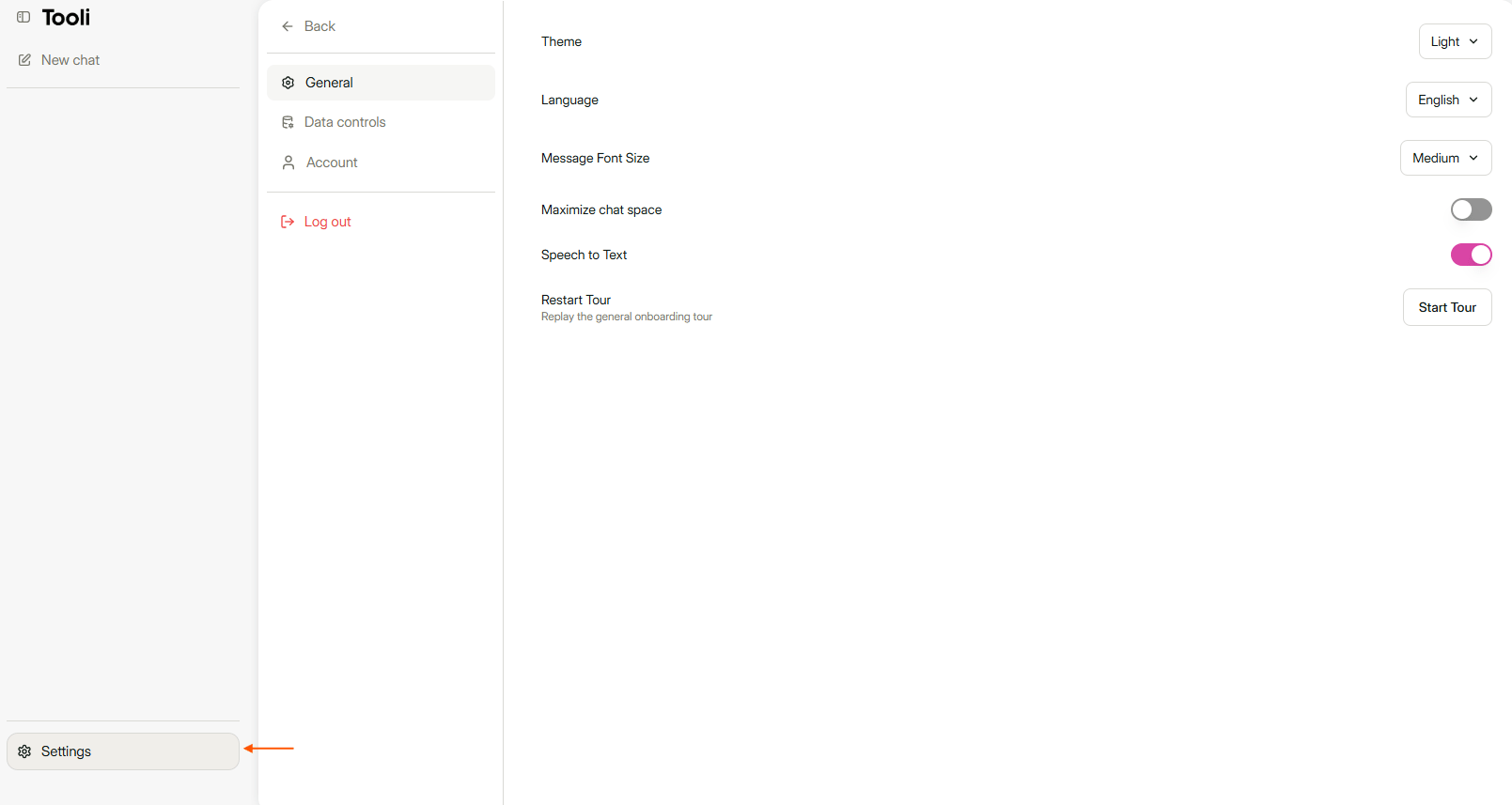
Click **Settings** at the bottom left and choose the **General** tab.
 ## Language
Choose the language of Tooli from the list, for example **Nederlands**, **Français**, **Deutsch** or **English**. The buttons and menus in Tooli change language straight away.
Tooli is currently available in nine languages: Dutch, French, German, English, Spanish, Italian, Polish, Portuguese and Brazilian Portuguese.
The language of the buttons doesn't decide which language Tooli answers in. Tooli answers in the language you ask your question in. You can also ask Tooli to translate an answer.
## Theme
Choose how Tooli looks:
* **Light**: white background.
* **Dark**: dark background, easier on the eyes in the evening.
* **System**: follows the setting of your computer or phone automatically.
## Text size
Choose a text size from **Extra Small** to **Extra Large**. Useful if you find the text hard to read, or if you use Tooli on a large screen.
## Watch the tour again
Want to go through the tour from your first visit again? Next to **Restart Tour**, click **Start Tour**.
This documentation is built and hosted on [Mintlify](https://mintlify.com), a developer documentation platform.
## Language
Choose the language of Tooli from the list, for example **Nederlands**, **Français**, **Deutsch** or **English**. The buttons and menus in Tooli change language straight away.
Tooli is currently available in nine languages: Dutch, French, German, English, Spanish, Italian, Polish, Portuguese and Brazilian Portuguese.
The language of the buttons doesn't decide which language Tooli answers in. Tooli answers in the language you ask your question in. You can also ask Tooli to translate an answer.
## Theme
Choose how Tooli looks:
* **Light**: white background.
* **Dark**: dark background, easier on the eyes in the evening.
* **System**: follows the setting of your computer or phone automatically.
## Text size
Choose a text size from **Extra Small** to **Extra Large**. Useful if you find the text hard to read, or if you use Tooli on a large screen.
## Watch the tour again
Want to go through the tour from your first visit again? Next to **Restart Tour**, click **Start Tour**.
This documentation is built and hosted on [Mintlify](https://mintlify.com), a developer documentation platform.