> ## Documentation Index
> Fetch the complete documentation index at: https://help.tooli.be/llms.txt
> Use this file to discover all available pages before exploring further.
# Your profile
> Change your display name and profile photo, and tell Tooli more about your role, your trade and your company.
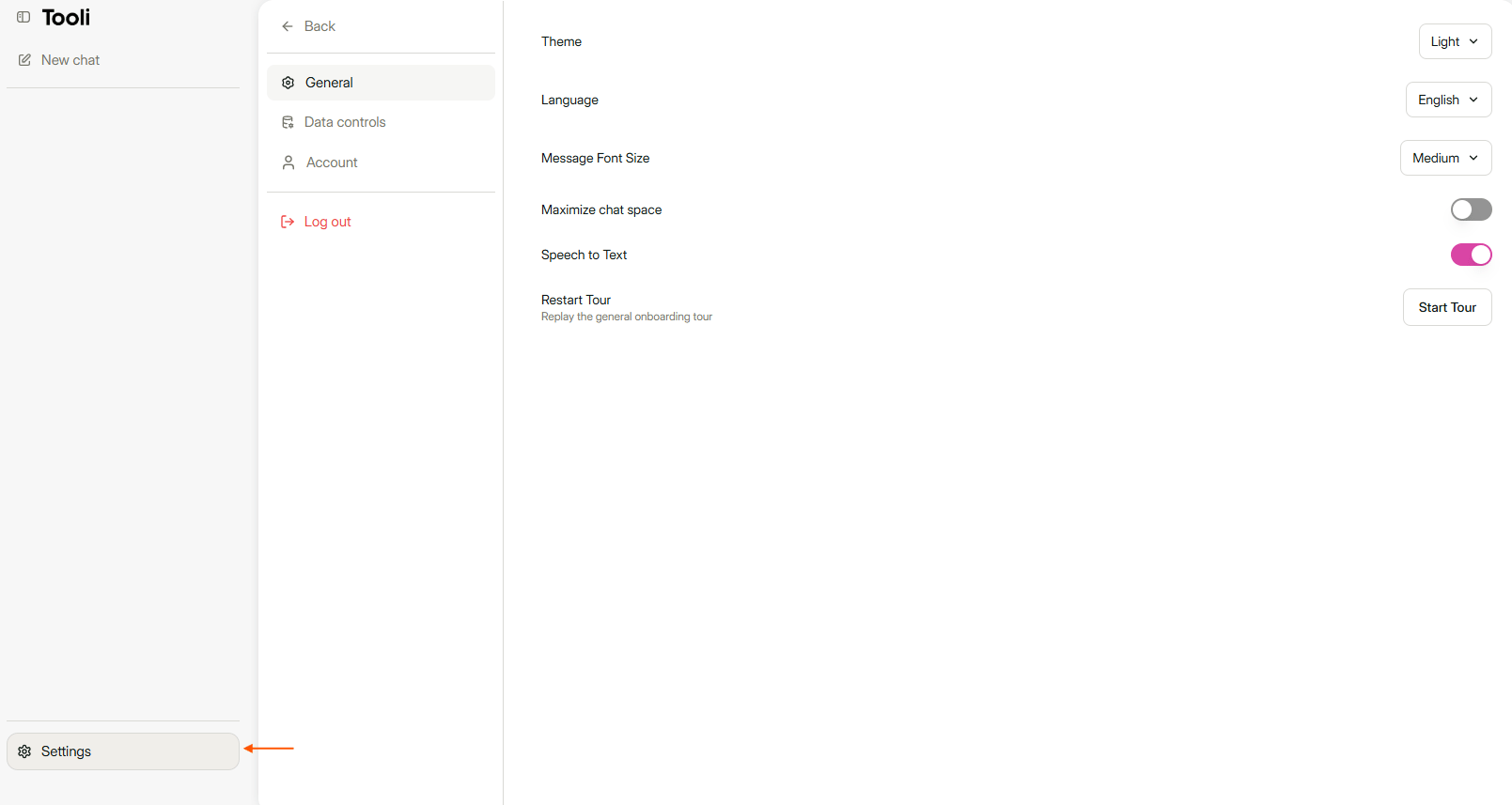
Click **Settings** at the bottom left and choose the **Account** tab.
 ## Your name and profile photo
Under **Your identity** you choose how your name appears in Tooli, and you add a profile photo.
### Your name
In the **Display Name** field, type the name you want to see in Tooli, for example only your first name.
Changed your mind? Click **Cancel**.
### Your profile photo
The **Upload an image** window opens.
Drag a photo into the window, or click **Select a file**.
## Your user profile
Under **User profile** you tell Tooli more about yourself and your company:
* **Professional role**: for example contractor, site manager, architect or estimator.
* **Interests**: click the trades you work in, such as roofing, joinery or heating and air conditioning.
* **Company name**
* **Company information**: a short description of your company, for example *"Family business with 12 employees, mainly home renovation in East Flanders."*
* **User preferences**: how Tooli should adapt its answers for you, for example *"Answer briefly, and explain technical terms."*
Click **Save** to keep your changes.
All these fields are optional. You can always change them or clear them again.
Tooli will soon use this information to make your answers more personal. This data is never used or shared to train the model behind Tooli. It's only sent securely with your question, so the answer fits you better. You can always remove it again.
Don't enter sensitive data, such as account numbers, passwords or personal data of clients.
This documentation is built and hosted on [Mintlify](https://mintlify.com), a developer documentation platform.
## Your name and profile photo
Under **Your identity** you choose how your name appears in Tooli, and you add a profile photo.
### Your name
In the **Display Name** field, type the name you want to see in Tooli, for example only your first name.
Changed your mind? Click **Cancel**.
### Your profile photo
The **Upload an image** window opens.
Drag a photo into the window, or click **Select a file**.
## Your user profile
Under **User profile** you tell Tooli more about yourself and your company:
* **Professional role**: for example contractor, site manager, architect or estimator.
* **Interests**: click the trades you work in, such as roofing, joinery or heating and air conditioning.
* **Company name**
* **Company information**: a short description of your company, for example *"Family business with 12 employees, mainly home renovation in East Flanders."*
* **User preferences**: how Tooli should adapt its answers for you, for example *"Answer briefly, and explain technical terms."*
Click **Save** to keep your changes.
All these fields are optional. You can always change them or clear them again.
Tooli will soon use this information to make your answers more personal. This data is never used or shared to train the model behind Tooli. It's only sent securely with your question, so the answer fits you better. You can always remove it again.
Don't enter sensitive data, such as account numbers, passwords or personal data of clients.
This documentation is built and hosted on [Mintlify](https://mintlify.com), a developer documentation platform.